
What to Know Before Buying a Gaming PC: A Complete Guide
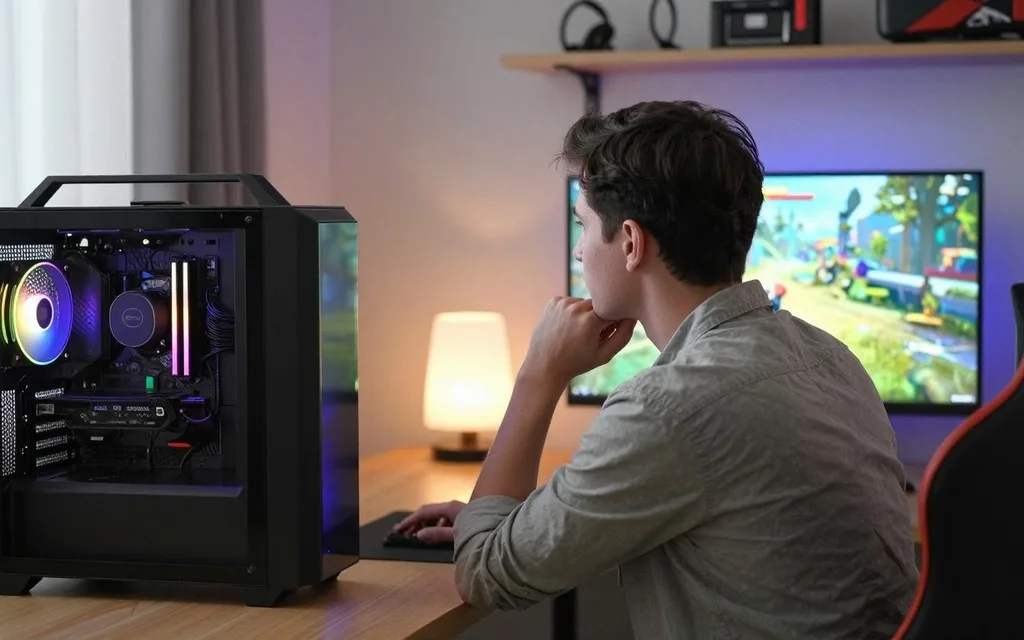
A first gaming PC is easier to choose once you know which games you want to play and what kind of screen you want to use. Your budget and needs matter just as much: a system for casual games has different priorities from one built for competitive play. VRAM is the memory on a graphics card that stores graphics data the card needs to render a game.
You do not need to memorize every technical term to make a sound choice. A few core specifications can tell you whether a computer fits your games, screen, and planned gaming experience. Start with the experience you want, not a flashy case or a long list of unfamiliar specifications.
Key Takeaways
- Choose a target game and screen before comparing computers.
- Match the graphics card to the resolution you plan to use.
- Check exact processor, RAM, storage, and power supply details.
- Keep room in your budget for a monitor and useful peripherals.
- Compare game tests made at settings close to your own.
How should you set a budget around your games?
A sensible budget starts with the games and monitor you already plan to use, because the computer is only one part of the setup. Begin with your needs, then decide what gaming experience you want and how much you can spend. In 2026, entry-level gaming PCs start around $1,000, while high-end systems can exceed $3,500.
| Budget tier | 2026 PC price | Typical graphics class | Gaming target |
|---|---|---|---|
| Entry-level | $1,000-$1,200 | RTX 5060 or RX 7600 class | 1080p |
| Mid-range | $1,200-$2,200 | RTX 5070 or RTX 5070 Ti class | 1080p-1440p |
| High-end | $2,200-$3,500+ | High-end graphics card | High settings and demanding games |
Match the budget to your play style
Entry-level systems suit popular games and everyday play at 1080p. Mid-range PCs give you more room for demanding games and higher resolutions. High-end systems make sense when you want stronger performance in demanding titles, or have a display that can show it.
Fortnite offers a useful example of how your play style changes the target. Casual play aims for 60 FPS, while comfortable building calls for 144 FPS or more. Competitive play can target 240 FPS or more, with a monitor that supports the matching refresh rate.
Choose a price tier that fits your games and screen, then spend on the parts that affect play before cosmetic extras.
Count the whole setup, not just the tower
A PC price does not include every part of a usable setup. A monitor, keyboard, mouse, headset, and any needed software can add to the amount you spend. The 2026 PC price ranges give you a starting point, not a full setup total.
A DIY example shows why component costs should be considered separately. A Ryzen 5 9600X is about $200-$220, and an RX 7600 is about $260-$290. A 16GB DDR5-5600 kit is about $200-$250, while a 1TB Gen 4 NVMe SSD is about $70-$90.
That same example lists an AM5 B650 motherboard at about $130-$180, a case at about $80-$110, and a 240mm AIO cooler at about $80-$120. Its 750W-plus 80 Plus Gold PSU is about $100-$150. These are separate estimates, not a combined build price. The best affordable PC meets your game and screen needs without spending on cosmetic extras first. Keep some budget for the monitor and essentials instead of spending the entire amount on the tower.
What to Know Before Buying a Gaming PC for Your Games and Resolution
For gaming, the graphics card usually has more influence on frame rates and image quality than any other single component. Choose the resolution first, because higher resolutions ask the GPU to render more pixels. For most 1080p players, prioritize an RTX 5060 or RX 9060 XT.
| Target resolution | Suggested graphics cards | VRAM guidance |
|---|---|---|
| 1080p | RTX 5060 or RX 9060 XT | Choose a card suited to the games and settings |
| 1440p | RX 9070, RX 9070 XT, or RTX 5070 Ti | 16GB recommended; 12GB on RTX 5070 is the minimum accepted guidance |
| 4K | RTX 5080, RTX 5070 Ti, or RTX 5090 | Choose a stronger card for demanding 4K games |
Choose a resolution before a graphics card
A dedicated graphics card has the largest effect on gaming performance, but the right model depends on the screen. A 1080p target needs less graphics power than 1440p or 4K. The best gaming PC for most people is the one that handles their actual resolution well, rather than one bought for a screen they may never use.
For 1440p, a 16GB graphics card such as the RX 9070, RX 9070 XT, or RTX 5070 Ti is recommended. The RTX 5070 has 12GB, the least VRAM capacity in this guidance for accepting a 1440p card. For 4K gaming, the stronger options include the RTX 5080, RTX 5070 Ti, and RTX 5090.
Read VRAM and model names in context
VRAM capacity is one part of choosing a graphics card, not a complete measure of its speed. The GPU model, memory design, and performance in the games you play also matter. A larger VRAM number alone does not guarantee higher FPS or better graphics.
The RX 9070 XT has 16GB of GDDR6 VRAM, a 256-bit memory interface, and a 304W TDP. At QHD, with maximum settings and no upscaling, it averaged 79 FPS in Forza Motorsport in 2026. It typically costs about $100 more than the RX 9070 and delivers about 90% of its performance, a trade-off worth weighing against your games.
Model names can also mislead when you compare cards from different generations or brands. Look for game tests at your target resolution and settings, rather than assuming a newer label means a faster result. Choose the card against the resolution you will actually use, not a higher resolution you only might want later.
Which processor and RAM configuration is enough?
A current gaming PC should have at least 16GB of RAM, while 32GB makes more sense when you game with other applications open. For a game alone, 16GB can be adequate. Choose 32GB if you plan to stream, record, or keep several applications open while playing.
Pair the processor with the graphics card
The CPU handles game logic, system tasks, and work that cannot be assigned to the graphics card. A capable processor helps keep a system balanced, especially when you want high FPS. It should suit the chosen graphics card, not take money away from the part that most affects gaming performance.
Fortnite’s 2026 requirements show how needs change by settings. Its minimum PC requirements include 8GB RAM and 64-bit Windows 10 22H2. The recommended tier calls for 16GB or more, an NVMe SSD, and a GTX 960 or R9 280 graphics card.
Fortnite’s Epic preset is a separate, more demanding tier. It calls for an RTX 3070 or RX 6700 XT, at least 8GB of video memory, and 16GB or more of RAM. Minimum requirements show what may run the game, not a promise of smooth play at high settings.
Choose RAM for gaming and multitasking
Competitive Fortnite guidance for 1080p at 240Hz or higher recommends a Ryzen X3D or fast recent 6-core processor, an RX 9060 XT to RTX 5070, and 16GB-32GB RAM. That target suits players pursuing high frame rates, rather than every casual player.
For casual Fortnite at 1080p and 60Hz-144Hz, the 2026 guidance recommends a recent 6-core processor, an RTX 5060 or RX 9060 XT, and 16GB RAM. Fortnite Epic quality at 1440p calls for an RTX 5070 or RX 9070 XT and 32GB RAM. The game alone recommends 16GB, while 32GB helps with streaming, recording, or many open apps.
Matched memory modules run as a set and can make upgrades simpler. Check whether the motherboard has open slots and supports the capacity you might want later. Check whether the computer uses matched memory modules and whether its motherboard has room for a future RAM upgrade.
How much storage and power should a gaming PC have?
A 1TB NVMe SSD is a sensible minimum, and the power supply must be adequate for the graphics card inside the case. Fast storage matters when you install large games and want them to load without the delays of a traditional hard drive. Do not buy a gaming PC that relies on a hard drive as its only drive.
Choose fast storage with enough capacity
An NVMe SSD is a type of solid-state drive that connects through a fast interface. SSDs load games faster than traditional hard drives. A hard drive can still work as extra space for files or games you play less often, but it should not be the only storage in a gaming PC.
One terabyte gives you a practical starting point for an operating system and a collection of games. If you keep many large titles installed, extra SSD capacity can save you from removing games to make room. Check both the drive type and capacity in a listing, since “storage” alone does not tell you what is installed.
Check the PSU and cooling
The PSU supplies power to the computer’s components. For a 16GB-VRAM graphics card, the October 2026 recommendation is at least 750W, or 850W for an RTX 5080. Wattage must suit the graphics card, but a higher number does not prove the PSU is well made.
A clearly named manufacturer matters alongside the rating. Reputable named brands for a 16GB-VRAM gaming PC include Corsair, EVGA, MSI, and Thermaltake. Look for the PSU’s brand, wattage, and efficiency rating in the exact configuration, not just general language about gaming power.
Heat can reduce sustained performance when components cannot shed it. Case airflow moves cooler air in and warm air out, while fans guide that movement. Air coolers and liquid coolers are both ways to manage heat; a liquid cooler still needs a case with a practical path for airflow.
- A hard-drive-only system with no SSD.
- A PSU with no clear brand or wattage.
- A case with restricted airflow and no practical cooling path.
Those warning signs can be easy to miss in a short product title, so inspect the detailed specification. A listed PSU should name a real model or at least a clear manufacturer, wattage, and rating. Confirm the PSU’s brand and wattage on the exact system listing before buying.
Should you choose a desktop, laptop, or console?
A desktop suits a fixed gaming desk and future upgrades, while a laptop makes sense when you will genuinely play in more than one place. Your routine is the deciding factor: desktops offer room for replaceable parts and cooling, while laptops bring the screen and keyboard with them. Choose the form that fits where you play most often.
Choose a desktop for upgrades and fixed-desk gaming
A desktop gives you more room for full-size replaceable components, extra drives, and cooling. You can change parts over time, though upgrades still depend on compatibility. It also needs a separate monitor, keyboard, mouse, and other peripherals, so plan for the space and the whole desk setup.
That fixed arrangement works well if your games stay in one room. It can also make it easier to connect accessories or add storage later. A desktop is less convenient when you regularly move between rooms, travel, or share a limited work surface.
Choose a laptop for real portability
A gaming laptop combines a screen and keyboard in one machine, which makes it practical for moving between locations. Most gaming laptops have limited component-upgrade options. Their cooling systems must fit in a smaller space, and demanding games drain the battery faster.
PC games are available through platforms such as Steam and Epic Games. A PS5 is a console with its own game library. Choose a PC if broader computer use, desktop customization, or PC game platforms matter to you. Choose a PS5 if its console format and library fit the player better.
There is no fair price or performance comparison without matching the specific systems and games. Think about where the player will use the device, which titles they want, and whether a general-purpose computer matters. Choose a laptop for portability you will use, not for the possibility of carrying it around.
Is it better to build or buy a gaming PC?
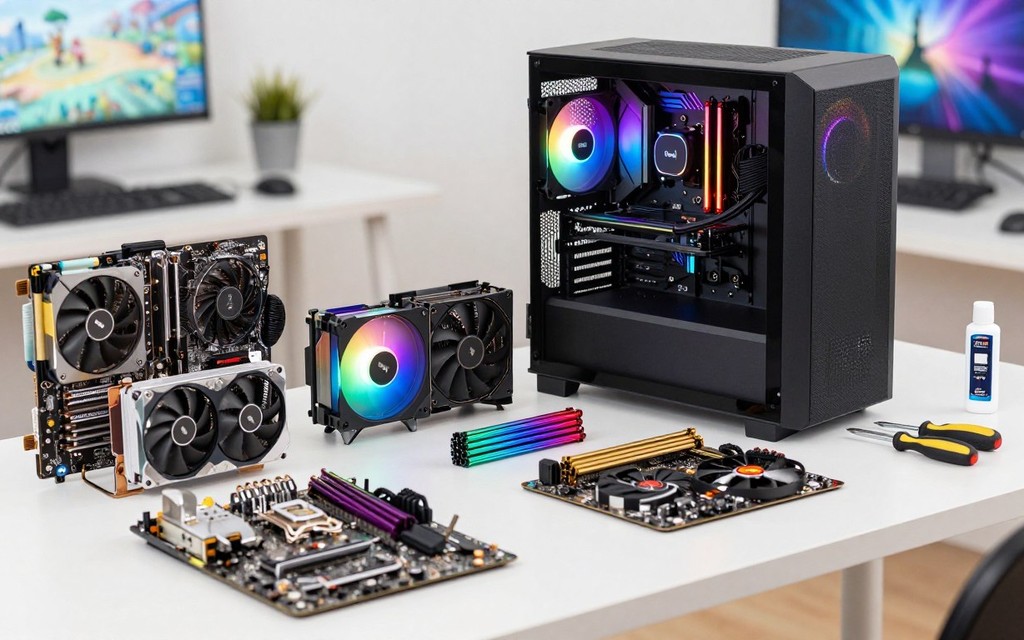
Building gives you more control over the parts, while a prebuilt saves assembly time and arrives as a tested system. Your comfort with setup can matter as much as the parts list. A complete desktop build needs at least seven core part groups: CPU, GPU, motherboard, RAM, storage, PSU, and case.
Build for control over every part
Building lets you select each component and decide where your money goes. You can compare exact models and choose parts around your upgrade plans. The trade-off is time: you need to research compatibility, assemble the hardware, install software, and troubleshoot problems if the system does not work as expected.
Compatibility includes more than whether a part fits inside the case. The motherboard must support the processor and memory, and the power supply must support the graphics card. A first-time builder can learn a lot, but should leave time for setup instead of expecting the PC to be ready straight from the box.
Buy prebuilt for an assembled system and support
A prebuilt system reduces the assembly and compatibility work. It can arrive assembled and tested, with one system warranty and a customer support route. That convenience can be worth paying for when you do not want to diagnose a build or source every part yourself.
Compare the two choices on equal terms before deciding. A three-step comparison keeps the decision practical:
- List the same target components for each option.
- Include required software, monitor, and peripherals.
- Decide whether build time and support are worth the cost difference.
The same core parts can still come with different support and setup experiences. Consider how much time you can give the build, and whether you are comfortable troubleshooting hardware or software. Compare a DIY parts list with a prebuilt that has the same core performance, not with a system that only looks similar.
What should you check in a prebuilt gaming PC?
A prebuilt listing is only useful for comparison when it names the parts inside the exact configuration. Look past the product name and match the CPU, graphics card, memory, and storage to your needs. Exact model numbers matter more than a broad label such as “gaming desktop.”
| System | Processor | Graphics card | RAM | Storage and PSU |
|---|---|---|---|---|
| Skytech Archangel 5 | Ryzen 7 9700X | RX 9070 16GB | 32GB DDR5-6000 | 1TB NVMe SSD; 750W Gold-rated PSU |
| Lenovo Legion Tower 5i | Core Ultra 7 265F | RTX 5070 Ti | 32GB DDR5 | 1TB NVMe SSD; PSU not specified |
| Skytech Blaze 5 | Ryzen 7 9800X3D | RTX 5080 | 32GB | 2TB NVMe SSD; PSU not specified |
| MSI Codex R2 | Intel Core i5-14400F | RTX 4060, 8GB VRAM | 16GB DDR5 | 1TB M.2 NVMe SSD; 650W Gold PSU |
| NOVATECH Phantom 2.0 | Intel Xeon i7 | RTX 3050, 6GB VRAM | 16GB DDR4-2666MHz | 512GB M.2 NVMe SSD; 550W Bronze PSU |
These configurations show why an exact parts list matters, not that one system is automatically right for you. The same product family can have different configurations, so use the details for the specific model you are considering. Do not assume a title or photo describes every version sold.
Verify the exact components
Use this checklist when comparing a product listing:
- Exact CPU model.
- Exact GPU model and VRAM.
- RAM capacity and type.
- Drive type and capacity.
- PSU brand, wattage, and rating.
Check warranty coverage and upgrade room
Find the warranty length, what it covers, and how support works if a part fails. Check whether opening the case affects upgrades or warranty coverage. Also consider whether the case and motherboard leave room for the storage or memory you may want to add.
Some details, such as PSU model or memory speed, may not appear in a short listing. A missing detail is a reason to seek the exact specification before you compare systems. Treat a vague label such as “gaming power supply” as a reason to ask for the precise model and rating.
Which monitor and accessories complete the setup?
A monitor can hide the performance you paid for if its resolution or refresh rate does not match the computer. Match the screen to the PC so the display can show the image quality and FPS you want. A 60Hz screen displays up to 60 frames per second; 120Hz and 144Hz screens can display higher frame rates.
Match the monitor to the computer
Resolution describes how many pixels make up the image. Refresh rate, measured in hertz, describes how many times the screen can update each second. Response time measures how quickly pixels change; 5ms or less is a recommended target for gaming.
A 60Hz monitor is acceptable for casual play, while 144Hz is a common target for competitive gaming. The computer’s FPS should match what the screen can display. A PC producing more frames than a 60Hz display can show will not make that screen refresh above 60 times each second.
Many desk gaming setups suit a screen around 20-25 inches, though desk distance and personal comfort matter. A 4K display has four times as many pixels as Full HD, so it demands more graphics performance. Make sure the computer can handle the resolution you choose in the games and settings you use.
Choose useful peripherals before decorative extras
A mouse should feel comfortable and give you controls that suit your games. A keyboard needs a layout and key feel you can use for long sessions. For a headset, prioritize clear audio, a usable microphone, and comfort over lighting or other decorative features.
Also check that the computer and monitor can connect through a suitable port and cable. A display’s resolution and refresh rate are useful only when the computer can send a compatible signal. Check the monitor’s resolution, refresh rate, and connection type against the computer before completing the setup.
How can you tell if a gaming PC is good before buying?
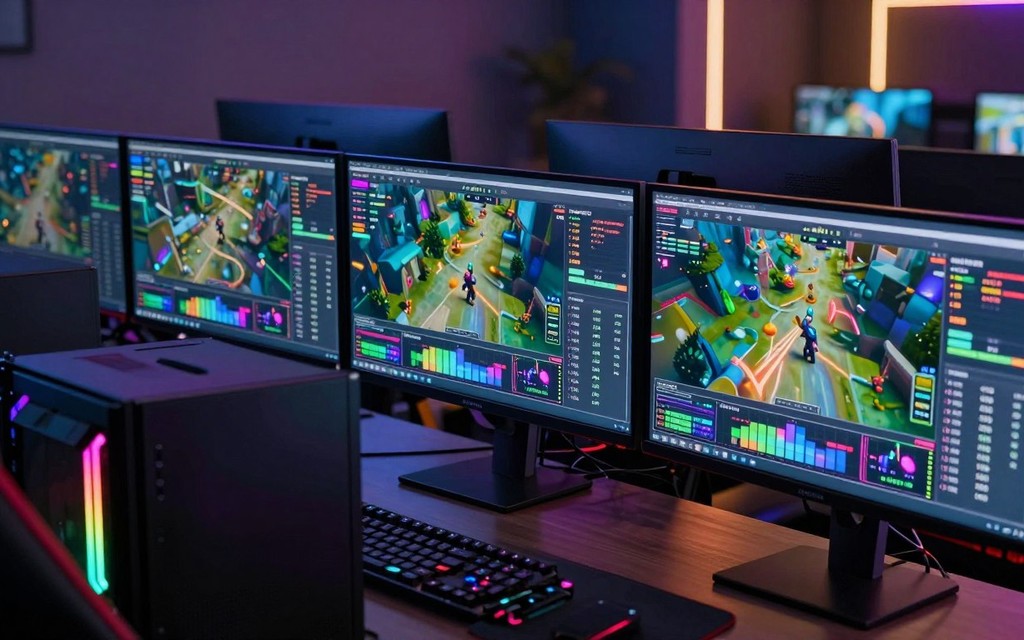
A useful gaming PC check starts with a specific game and settings, not a vague “high-performance” label. Use comparable tests that match the title, resolution, and quality options you plan to use. Minimum requirements do not guarantee smooth play at your preferred settings.
Check game requirements and comparable tests
To find out which games a PC can run, compare its exact CPU and GPU with each game’s requirements. Then look for tests at the resolution and settings you intend to use. The game version and graphics options matter, so old results may not describe current play.
Fortnite removed its DirectX 11 option in update 40.10 in April 2026. Performance mode and DirectX 12 remained available. When reviewing test results, check which rendering option and upscaling method the test used, as well as its graphics quality.
In a 2026 Fortnite test at 1440p Epic quality with ray tracing, the RX 9070 XT averaged 120 FPS and the RTX 5060 Ti 16GB averaged 78 FPS. In a separate ComputerBase test from April 2024, Fortnite at 1080p High, Lumen High, and DLSS/TSR Quality averaged 78.8 FPS on the RTX 3060, 94.9 FPS on the RTX 4060, and 137.8 FPS on the RTX 4070.
A benchmark is useful only when its game, resolution, graphics settings, and upscaling options resemble the way you plan to play.
The 2024 and 2026 Fortnite results use different dates and test conditions, so they are not directly comparable. Treat each result as evidence for its own test setup. A model’s performance can change sharply when you move from one resolution or quality preset to another.
Look for a balanced, compatible system
Use this five-step check before choosing a computer:
- Name the games you expect to play.
- Write down your target resolution and settings.
- Check the exact CPU and GPU requirements.
- Compare tests using similar settings.
- Confirm the storage and memory meet the game’s needs.
Requirements can set a basic threshold, while comparable tests help estimate how a system behaves during play. Pay close attention to settings such as ray tracing and upscaling, since they affect the result. Make the final comparison using tests at the resolution and quality settings you actually intend to play.
Conclusion
A good purchase is the one that fits your games and playing habits without paying for power you will not use. The two most useful checks are whether the computer suits the games and monitor you plan to use, and whether its exact component models match the claims.
A short list makes comparison easier than browsing endless product pages. Write down a target game, resolution, and total budget, then compare a few systems against those requirements. Keep the monitor and the rest of your setup in mind as you decide what the computer needs to do.
Write down one game, your monitor resolution, and your total budget before comparing your final options.
FAQ
What should I consider when buying a gaming PC for the first time?
Choose your games, target resolution, and total setup budget first, then compare the exact GPU, CPU, RAM, and storage. Your monitor affects which graphics performance you can use, while peripherals add to the complete setup cost. Check game tests at settings close to yours, since a minimum requirement alone does not promise smooth play.
Is 32 GB RAM overkill for gaming?
No, 32GB is useful when you stream, record, or keep applications open beside a game. For gaming by itself, 16GB is the recommended minimum and can be adequate. The extra capacity gives multitasking more room, especially if you run a browser, chat app, or streaming software while playing.
Is a $500 gaming PC worth it?
A $500 gaming PC can make sense when your expectations are modest or you find a suitable system at that price. Inspect its exact graphics card and check performance in the games you want. Remember that a monitor, keyboard, mouse, and headset may cost extra if you do not already own them.
Is a $1000 gaming PC worth it?
Yes, a $1,000 gaming PC can be worth considering because the 2026 entry-level range begins at that price and targets 1080p gaming. The actual experience depends on the exact processor, graphics card, RAM, and storage. Decide whether the budget covers only the tower or also needs to pay for a monitor and peripherals.
Is a $600 gaming PC worth it?
A $600 gaming PC can be worthwhile if its graphics card, condition, and included components fit your needs. Do not assume the price alone guarantees modern-game performance. Check the exact GPU model against tests for the games and settings you plan to use, and account for any missing parts or accessories.
Can a 500$ PC run Fortnite?
A $500 PC can run Fortnite if its components meet the game’s current requirements, but the price alone cannot confirm that. Fortnite’s listed minimum includes 8GB of RAM. Actual play also depends on the graphics card, settings, and system condition, so compare the exact hardware with current game requirements and relevant tests.
Is 16GB RAM ok for Fortnite?
Yes, 16GB is the 2026 recommendation for Fortnite when you play the game by itself. The game’s minimum requirement is lower, but meeting the minimum does not promise the settings or smoothness you want. Choose 32GB if you plan to stream, record gameplay, or keep several other applications open.
If you want to dig further into what is hidden network on my computer securit, read our What Is Hidden Network on My Computer Securit guide.
If you want to dig further into how to watch dish network on your computer st, read our How to Watch Dish Network on Your Computer St guide.
If you want to dig further into what is home computer network also called lan, read our What Is Home Computer Network Also Called LAN guide.
Leave a Reply