
How Long It Takes to Build Gaming PC: A Complete Guide
A gaming PC build is more than the time spent fitting parts into a case, so plan for the work around assembly as well as the assembly itself. Hands-on build time means the time spent physically installing and connecting components, not researching parts, waiting for delivery, or running unattended tests. The schedule also includes getting the operating system, drivers, and basic checks ready.
This guide separates physical assembly from setup, delivery, and extra testing. If this is your first build, careful work matters more than speed. You can take breaks to check the manual and make sure each connection is secure. A realistic schedule leaves room for careful checks instead of treating the first power-on as the finish line.
Key Takeaways
- First-time builders should reserve 4-8 hours for hands-on assembly.
- A familiar, straightforward build can take about 1-2 hours.
- Operating system setup, updates, and drivers add time after assembly.
- Parts research and delivery are separate from hands-on build time.
- Leave room for checks and troubleshooting after the first power-on.
How Long It Takes to Build Gaming PC: Time by Experience Level
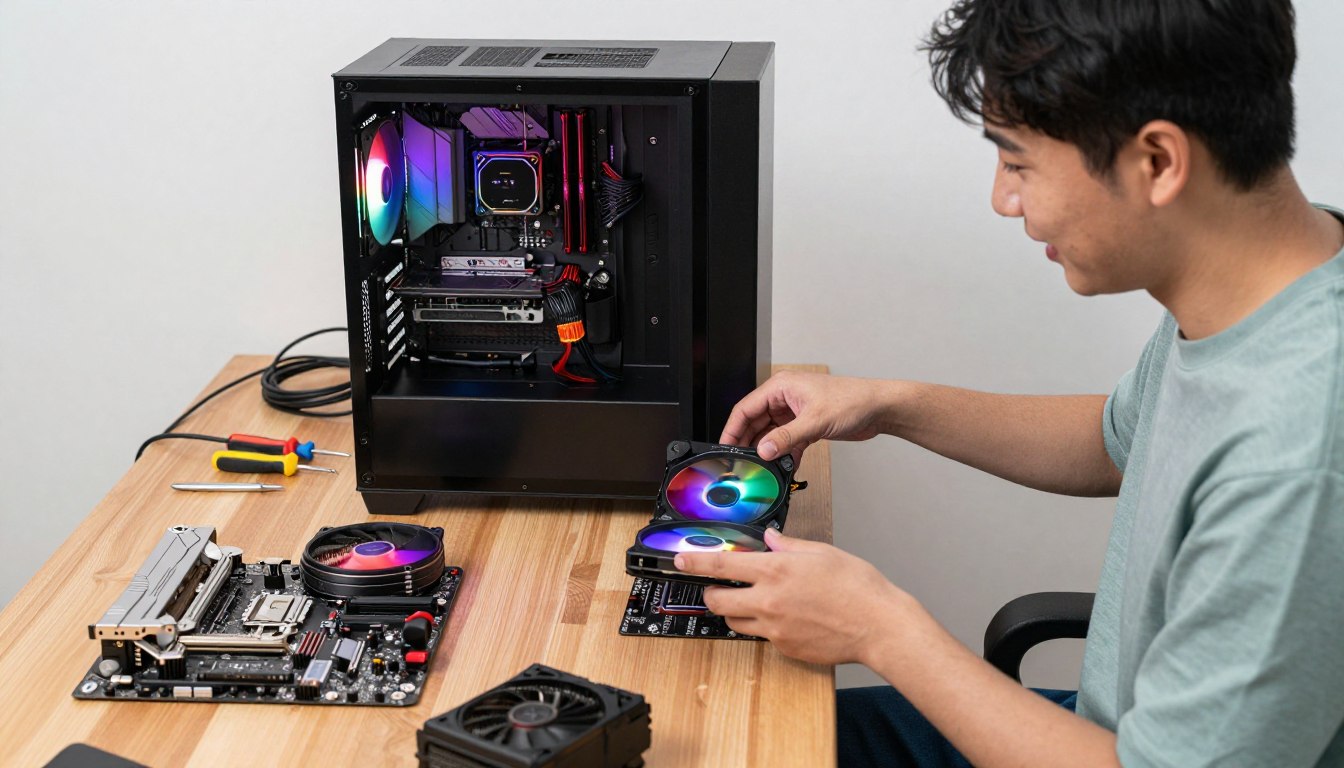
A first-time builder should reserve 4-8 hours for careful hands-on work, while an experienced builder may finish a straightforward assembly in 1-2 hours. Give yourself a full afternoon if you have never built a PC before. That range allows time to consult the manual, check connections, and pause without rushing.
A first build deserves 4-8 hours of hands-on time, including careful checks and pauses.
How long does it take to build a PC for gaming? A first-time gaming build can fill an afternoon, while a familiar, simple setup may take much less. The estimates below cover physical assembly, not the complete setup.
| Builder experience | Hands-on time | Planning note |
|---|---|---|
| First-time builders | 4-8 hours | Allow time for manual checks and pauses |
| Experienced builders | 1-2 hours | Best suited to a straightforward, familiar build |
| Regular builders | 30 minutes to 2 hours | Build complexity and pace affect the range |
How long does it take to build a PC for the first time? Budget 4-8 hours, even though some estimates put a first build at 3-4 hours. A typical mid-tower custom build takes 3-8 hours of hands-on assembly. META PCs estimates about three hours of hands-on work once parts arrive in 2026.
How long does it take to build a gaming PC for beginners? The same 4-8-hour allowance gives you room to work carefully. OS setup and problem-solving can extend the total beyond assembly. Give your first build a full afternoon rather than trying to match an experienced builder’s pace.
What Factors Change the Time It Takes to Build a Gaming PC?
Component choices, compatibility checks, and the amount of cable work can turn the same basic task into a short build or a much longer one. Checking before ordering helps avoid delays from parts that do not fit or connect. The money needed to build a PC depends on component choices, not a single fixed price.
A 2026 budget Tom’s Hardware build lists a $924 total, but that figure excludes its separately listed $258 RAM kit, so it is not an all-in price. The build lists a $219 CPU, $139 motherboard, $339 GPU, $60 case, $60 power supply, $25 cooler, and $82 512GB PCIe 3.0 x4 M.2 SSD. Its 650W power supply is intended for a system expected to peak at 400-450W.
Part selection and compatibility checks
Research and price-checking can take 5-15 hours, followed by 30 minutes to a few hours of preparation. Before ordering, match the CPU socket to the motherboard, check the GPU against case clearance, and confirm RAM type and board support. Check storage interface and available slot, plus PSU capacity and connectors.
- CPU socket matches the motherboard
- GPU fits the case clearance
- PSU wattage and connectors suit the components
- RAM type is supported by the motherboard
- Storage interface matches an available slot
Build complexity and cable management
A standard mid-tower case leaves more room to work than a compact case. Extra fans or RGB lighting add cables to route and connect, which can make cable management slower. Custom water cooling adds more parts and connections, so it calls for more planning than a basic air-cooled build.
The motherboard, CPU cooler, and power supply all affect how much room you have for cables. A crowded case can make a simple connection awkward to reach. Choosing a less complex layout can keep installation manageable without changing the core gaming parts.
Budget, workspace, and tools
A clear, well-lit area and a Phillips screwdriver prevent avoidable interruptions. Small screw containers also help keep fasteners from rolling away. Confirm every component fits and connects before ordering, since a missing cable or incompatible part can cost more time than careful assembly.
How Long Does Each Build Step Take?
The physical work is uneven: seating a CPU may take minutes, while routing power cables can take close to an hour. Cable work often takes longer than placing small parts. Use these ranges as task estimates, not a promise that every build will finish on schedule.
Installing the core components
Unboxing and organizing takes 10-15 minutes. CPU installation usually takes 1-5 minutes, RAM takes 1-5 minutes, and storage takes 5-10 minutes. Motherboard installation takes 5-20 minutes, while GPU installation takes 2-10 minutes. A tight case, cable access, and cooler design can change the pace.
Cables and a tight case can take longer than seating RAM or the GPU. Power-supply installation and cable routing take 10-60 minutes, and cable management takes another 5-30 minutes. A larger CPU cooler may also make nearby connections harder to reach.
| Task | Typical time | What can add time |
|---|---|---|
| CPU installation | 1-5 minutes | Careful socket alignment |
| CPU cooler installation | 5-20 minutes | Mounting design and case access |
| Power supply and cable routing | 10-60 minutes | Tight case and cable management |
| Windows installation | 20-30 minutes | Drive setup and restart prompts |
First boot and BIOS checks
The first boot and BIOS setup take 10-20 minutes. POST, or power-on self-test, checks basic hardware as the system starts. In BIOS, confirm the hardware is detected and check temperatures before proceeding. Stop to review a reading that appears unusually high.
That first check helps catch a loose connection before software setup begins. BIOS menus differ by motherboard, so use the manual to find the hardware status and temperature screens. Save the settings you change before leaving the menu.
Windows, drivers, and basic testing
Windows installation takes 20-30 minutes, and driver installation takes 10-30 minutes. Install chipset and graphics drivers, then run Windows updates. Basic testing takes 10-60 minutes and can include a brief temperature or stability check.
A clean software setup can take 1-3 hours, with 90 minutes a reasonable minimum when downloads and updates are included. Windows and software setup may take about 30 minutes on a fast PC with a fast connection, or 1-2 hours on a slower connection. Download and update time is additional to the basic installation estimate. Allow extra time for downloads and restarts, because setup duration depends on connection speed and update needs.
What Should You Prepare Before You Start Building?
A few minutes spent laying out the parts, manuals, and tools can prevent repeated pauses once assembly starts. Good preparation means the correct components and instructions are within reach. Keep the motherboard manual open before installation begins.

Set up the workspace and check the parts
Clear a bright, stable work surface, collect a Phillips screwdriver and small containers for screws, and lay out the manuals and components. Check the box contents before starting so a missing cable does not interrupt the build.
- Clear and light the work surface
- Set out a Phillips screwdriver and screw containers
- Match each part to its manual
- Check cables and mounting hardware are present
A quick visual check also helps you spot the motherboard, case, cooler, and storage before they are needed. Keep small screws grouped by component rather than loose on the table. This makes the build easier to follow when several fasteners look alike.
Confirm memory, storage, and BIOS requirements
Use matched RAM pairs in the motherboard’s recommended slots, typically slots 2 and 4. For AMD platforms in 2026, a matched 2x16GB DDR5-6000 CL30 kit is recommended. A 32GB DDR5 minimum and Gen 4 NVMe drive are recommended for a 2026 gaming PC, with 1TB as the minimum storage recommendation and 2TB the smarter choice.
For 2026, 16GB is the minimum RAM recommendation for modern gaming, while 32GB is preferred for most gamers. Streamers using OBS alongside other apps have a 32GB starting point. Windows 11 and background tasks can use 4-13GB at idle, and a modern AAA game can use 12-14GB by itself. A 16GB build may require closing apps in RAM-heavy games.
RAM capacity and resolution are different considerations: 4K does not by itself determine RAM needs. Match an AMD processor with an AM5 motherboard, or Intel Core Ultra 200 series with LGA1851. AMD has committed to AM5 support through 2029. Enable Secure Boot, TPM 2.0, and Resizable BAR in BIOS before Windows installation. Check the motherboard manual for the correct memory slots and front-panel connections before fitting the board into the case.
How Much Extra Time Can Troubleshooting Add?
A black screen for several minutes on the first power-on can be normal while an AM5 board trains its memory. Wait through the initial pause, since larger or faster RAM configurations can take longer. Troubleshoot if there is no progress after more than 10 minutes.
Memory training is not automatically a failed boot. Before reseating parts, check the motherboard manual and confirm that the power and front-panel connections are correct. Common POST problems include RAM that is not fully seated, a forgotten 8-pin CPU power cable, reversed front-panel pins, or a memory kit the board does not support.
Check one simple cause at a time rather than pulling the whole system apart. BIOS updates and Windows setup can add 1-2 hours. Those tasks require active attention at points, while a stability test may run for 24-48 hours mostly unattended.
A PC that boots is not automatically stable. A brief check can confirm basic operation, but longer testing helps reveal problems that do not appear immediately. If there has been no progress for more than 10 minutes, check the power, RAM seating, and front-panel connections before taking the system apart.
How Can You Save Time or Choose a Prebuilt PC?
Preparation and a patient pace save more time than rushing through installation and creating a problem to diagnose. Organized work cuts avoidable pauses. A prebuilt PC usually takes about 30-90 minutes to connect, complete initial setup, and reach basic use.

Use these habits to make a DIY build smoother:
- Watch one complete build guide before starting.
- Keep screws organized as you remove them.
- Read the motherboard manual before connecting cables.
- Prepare the operating-system installer and drivers in advance.
A prebuilt avoids DIY assembly, but it still needs initial setup. Windows updates, driver downloads, and account setup can add an hour or more, depending on the connection and update backlog. You still need to connect the display, keyboard, mouse, and power before beginning.
DIY gives you control over the parts and hands-on experience, but you also handle assembly and troubleshooting. A prebuilt trades some choice over individual components for less installation work. Compare equivalent parts and value your own time rather than assuming one option always costs less. Choose a prebuilt if avoiding hands-on assembly matters more than selecting and installing every component yourself.
How Long Does the Full Process Take From Parts List to Gaming?
The full project commonly spans days or weeks because planning and delivery happen before the hands-on build. A typical custom build can take 1-3 weeks from the decision to build to a ready-to-use PC. Planning and shipping are separate calendar phases, so total time can greatly exceed assembly time.
Count planning, delivery, assembly, and setup as separate parts of the calendar.
Parts planning may take 1 day to 2 weeks, and sourcing and shipping can take 2 days to 2 weeks. Component availability and synchronized deliveries affect when you can start. A defective part that needs replacement can stretch the schedule further.
Purchasing can take longer when prices shift sharply. In January 2026, a 32GB DDR5 kit cost around $300, while a 16GB kit cost roughly $200, making a scratch build especially challenging. A 32GB DDR5-6000 kit priced at $80-$120 in mid-2025 cost $400-$470 in 2026, and 64GB kits cost more than $800.
By October 2026, memory prices were several times their level a year earlier, while flash storage prices had roughly doubled. Industry forecasts that month did not expect meaningful relief from the memory and flash shortage before the end of 2027. Set your gaming date only after every required part has arrived and passed a compatibility check.
Conclusion
A first build goes more smoothly when you plan for the whole job, not just the moment the PC powers on. A first-time builder should make room for careful assembly and software setup. A familiar build can take much less hands-on time, especially when the parts and process are already familiar.
Write a parts checklist and set aside an uninterrupted block before you start. Keep the motherboard manual nearby, and leave enough room to check the system after its first boot. Before opening the boxes, confirm the parts list and reserve an unhurried afternoon for the build.
FAQ
Is $1000 enough to build a gaming PC?
Yes, $1,000 can be enough, depending on component choices, but a 2026 budget example listed at $924 excludes its separately priced $258 RAM kit. That means the listed total does not represent a complete system price. Set aside money for every required part, including memory, and compare the exact components before deciding which performance level fits your budget.
Is $2000 enough for a gaming PC?
Yes, $2,000 is enough for many gaming builds. The exact performance tier depends on component choices, including the graphics card, processor, memory, and storage. Prioritize the parts that matter for the games and display you use, then check that the full list fits the budget. A higher price alone does not guarantee that every component is balanced.
Is it cheaper to build a PC or make one?
Building a PC yourself can avoid some assembly costs and lets you choose each part, but it does not always cost less than buying a prebuilt. Compare systems with equivalent components, warranties, and included software. Count your time too: DIY requires planning, assembly, setup, and possible troubleshooting, while a prebuilt still needs initial setup and updates.
Is 32 GB RAM overkill gaming?
No, 32GB is not generally overkill for modern gaming. In 2026, 16GB is a minimum recommendation, while 32GB is preferred for most gamers. Games, launchers, browsers, and other apps can use memory at the same time. A 32GB kit gives you more room to multitask without closing programs when a game has a high memory demand.
How much RAM for 4K gaming?
Resolution alone does not set RAM needs, so 4K gaming does not automatically require more system memory. For most gamers, 32GB is a practical target, while game choice and multitasking affect actual use. A modern game can use a large share of a 16GB system by itself. Streaming or keeping other apps open makes extra capacity more useful.


 By
By