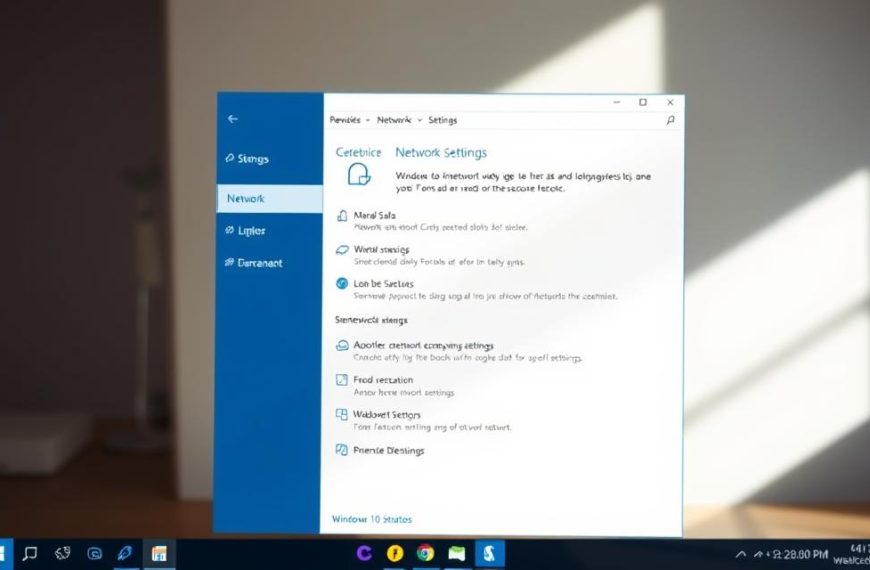


Keeping your wireless connections tidy is key in today’s world. Your device collects many saved networks over time. Some might not be safe or useful anymore.
There are good reasons to remove old network connections. It helps solve connection problems by getting rid of outdated profiles. Also, it’s a privacy move to delete Wi-Fi profiles and avoid unknown networks.
This guide will show you how to manage your device’s wireless connections. You’ll discover ways to keep your network list clean and safe. This ensures your device works well and keeps your data secure.
Good network management helps fix technical issues and keeps your connections organised. A tidy list means better connection stability and more security online.
Understanding Network Management and Its Importance
Your computer remembers every wireless network you’ve ever connected to. This is called a wireless network profile. It lets your device connect to familiar networks easily, without needing to enter passwords every time.
While this saves time, it can cause problems if your list of saved networks gets too long or outdated. Operating systems keep these profiles to make things easier for you. But, this can sometimes cause more issues than it solves.
Good network management is key for several reasons. It stops your device from connecting to unwanted or insecure networks. This is very important when you’re travelling or in areas with lots of networks.
It also helps when multiple networks have the same name (SSID). Your device might get confused and have trouble connecting. By removing unnecessary profiles, you avoid this problem and get better connectivity.
Managing your network list also boosts security. Old profiles from public networks or places you’ve been before could be risky. If your device tries to connect to them automatically, it could be dangerous. Keeping your saved networks up to date helps avoid these risks.
Many Wi-Fi connectivity issues come from bad or conflicting wireless network profiles. If your device has trouble staying connected or keeps dropping from networks, the problem might be in your profiles. Clearing out bad profiles can solve these problems, not changing your hardware.
“A well-maintained network profile list is key for wireless stability. Getting rid of unused or bad entries often fixes connectivity problems that people think are hardware issues.”
Regularly checking and managing your network profiles is important for the best performance, security, and reliability. This way, you can avoid many common Wi-Fi connectivity issues before they cause trouble with your work or online activities.
How Do I Delete a Network From My Computer: Core Concepts
Before we start, it’s important to know where to begin. You need to find your device’s network settings area. But, the way to get there changes with each operating system.
This basic knowledge helps you start your network cleanup right. It doesn’t matter if you’re using Windows, macOS, or something else.
Locating Network Settings on Various Platforms
Where you find your network settings changes with each system. Windows often uses the Settings app or the control panel.
On macOS, you’ll find network options in System Preferences. Apple has changed this to System Settings in newer versions. This makes it easy for Mac users to find their network settings location.
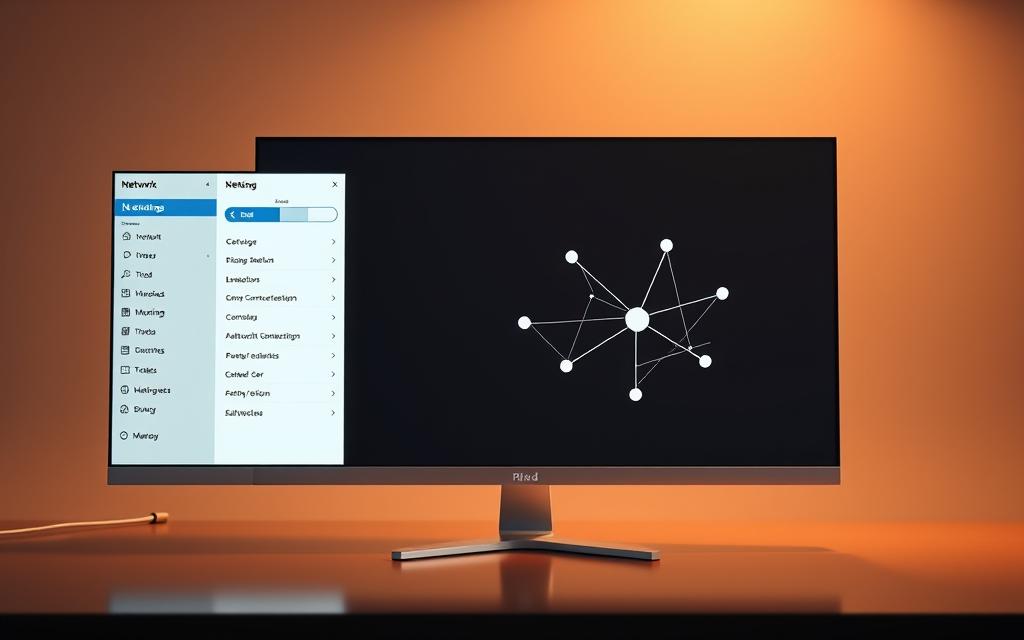
Knowing these differences saves time and avoids frustration. Windows might have more steps, but macOS is simpler. The goal is the same – to access your network list.
Older Windows versions might need you to use the control panel for network settings. This is important for certain setups or older systems.
Good network management is more than just deleting connections. Sometimes, you need to remove old computer names for a clean start and better performance.
Your device’s system settings are key for network changes. They help with connection problems or organising your networks. Knowing how to use these menus is vital.
The next parts will give detailed steps for each major operating system. Understanding where to find your network settings location will help you follow these instructions for your device.
Step-by-Step Guide: Deleting Networks in Windows 10
Windows 10 makes managing networks easy with its modern Settings. Here, we show you how to remove unwanted Wi-Fi profiles.
1. Opening Network & Internet Settings
Start by clicking the Start menu in the bottom-left corner. Then, select the Settings gear icon to open Settings.
In Settings, find and click on Network & Internet. This is where you manage your connections and saved networks.
2. Managing Known Networks List
In the Network & Internet menu, choose Wi-Fi from the left sidebar. Scroll down to find and click on Manage known networks.
This screen shows all Wi-Fi networks your computer has connected to. Look through the list to find the network you want to remove.
3. Executing the Deletion Process
Click on the network name you want to remove. A Forget button will appear below the network details.
Click Forget to delete this network from your system. Windows 10 won’t automatically connect to it anymore.
This method helps you manage your networks well. It keeps your list of connections clean. The remove Wi-Fi Windows 10 process is done when the network is gone from your list.
Step-by-Step Guide: Deleting Networks in Windows 11
Windows 11 has changed how you manage networks. The new interface is easier to use but keeps the same functions. Here’s how to remove networks you don’t want.
Accessing Network Settings via Settings App
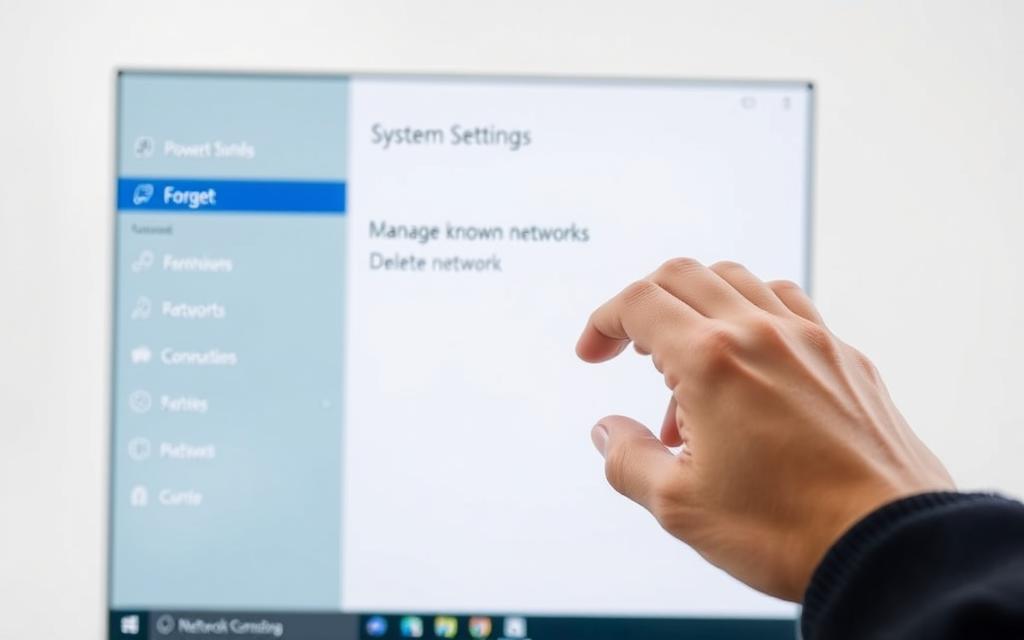
Start by opening the Settings app. You can find it in the Start menu or by pressing Windows key + I. Go to the Network & internet section on the left.
Choose Wi-Fi from the options. This shows your current connection and available networks. Click on “Manage known networks” to see all saved connections.
“The Settings app in Windows 11 consolidates network management tools into a more intuitive layout.”
Identifying and Selecting Networks to Remove
The Manage known networks screen lists all wireless networks you’ve connected to. Each network shows its name and type.
Look through the list to find the network you want to remove. Windows 11 lists them alphabetically. Make sure you pick the right one.
Some networks might look similar. Double-check the name to avoid mistakes.
| Network Type | Identification Features | Removal Considerations |
|---|---|---|
| Home Wi-Fi | Personal network name, secured connection | Remember credentials for reconnection |
| Public Hotspots | Often unsecured, generic names | Safe to remove if not frequently used |
| Work Networks | Corporate naming conventions, enterprise security | Check with IT department before removal |
Finalising the Removal
Click on the network you want to forget. Windows 11 shows a “Forget” button next to each network. Click this to start the removal.
You might need to confirm before deleting the network. Say yes to complete the Windows 11 forget network process. The network will then be gone from your list.
After removing it, your device won’t connect to that network automatically. You can reconnect manually by choosing the network and entering your details again.
For more Wi-Fi settings Windows 11 options, check the Network & internet section. You can monitor data usage, set up proxies, and adjust adapter settings.
Step-by-Step Guide: Deleting Networks in macOS
Apple’s macOS makes managing networks easy with its System Preferences. You can remove Wi-Fi Mac connections that are outdated or fix connection problems. The steps are the same for all recent macOS versions.
1. Navigating to Network Preferences
Start by clicking the Apple menu in the top-left corner. Choose System Preferences. Then, find and click the Network icon. This shows different connection options.
Select Wi-Fi from the left sidebar. Next, click the Advanced button in the lower-right corner. This opens the full list of preferred networks.
2. Removing Preferred Networks
In the Advanced settings, you’ll see a list of networks your Mac has connected to. To macOS forget network entries, pick the unwanted network name. Then, click the minus (-) button below the list.
This removes the selected network from your preferred list. For deleting more networks, repeat this for each one. You don’t need to confirm each deletion, making it quicker.
3. Applying and Verifying Changes
After removing networks, click OK to leave the Advanced settings. Then, select Apply in the main Network window to save your changes. Check the Advanced settings again to see if the deleted networks are gone.
Your Mac won’t automatically connect to these forgotten networks anymore. This makes your System Preferences network management cleaner. It also helps avoid connection problems with similar network names.
Addressing Common Challenges and Errors
Even with the right steps, users might face unexpected issues when deleting network connections. These problems can include networks that keep coming back or access issues. Knowing how to solve these problems helps keep your network tidy and efficient.

Networks Reappearing After Deletion
One big problem is when networks you’ve deleted come back. This can happen for a few reasons:
- Group policies enforcing specific network configurations
- Multiple user profiles on the same device
- Network adapters automatically rediscovering networks
- Synced settings across Microsoft accounts
For tough cases, using the Command Prompt with admin rights can help. You can use netsh commands to remove networks for good. This method works when other ways don’t.
Handling Permission and Access Denials
Many users hit permission denied errors when trying to change network settings. These issues usually come from not having enough rights or strict security policies.
To fix these problems, make sure you have admin privileges. Right-click on network tools and choose “Run as administrator” to get more access. If you’re at work, talk to your IT team to get admin rights for network tasks.
The table below shows common permission issues and how to fix them:
| Error Message | Likely Cause | Recommended Solution |
|---|---|---|
| Access denied | Standard user account | Use administrator account or obtain temporary admin rights |
| Operation requires elevation | Insufficient privileges | Right-click and select “Run as administrator” |
| Settings managed by organisation | Group policy restrictions | Contact system administrator for policy exceptions |
| Permission denied | Corrupted user profile | Create new user account with admin privileges |
Some permission denied errors might point to bigger system problems. If you keep getting these errors even with admin rights, it might be worth checking system files or doing a clean boot to solve software conflicts.
Conclusion
This guide has shown you how to remove unwanted network connections. It covers Windows 10, Windows 11, and macOS. Each system has its own steps in the settings menu.
Checking your saved networks often is a smart move. It stops your device from connecting to unsafe networks. This keeps your system running smoothly and securely.
By following these tips, you can better manage your computer networks. Knowing which networks your system remembers gives you more control. Make it a habit to check your network settings regularly for a safer and more efficient online experience.


 By
By