

It’s important for devices to see each other on a network. This makes sharing files and printers easy. It’s great for both home and work settings.
Windows 10 has tools to help with this. It’s easy to make your computer visible to others. This is useful for sharing files, printers, and streaming media.
Knowing how to use windows 10 network settings helps create a better digital space. It ensures devices work well together while staying safe.
This guide will show you how to make your computer visible on a network in Windows 10. You’ll learn how to make your system work well and stay safe.
Understanding Network Discoverability in Windows 10
Network discovery is like a digital handshake between devices on your local network. It makes communication smooth and easy. Your Windows 10 system can then find and talk to other computers, printers, and shared resources without trouble.
What Network Discoverability Entails
When you enable network discovery, your computer shows up to others and can see them too. This two-way visibility is key for local network chats.
Windows 10 handles this setting based on your network type. It knows the difference between safe private networks and public ones. It then sets the right security for each.
Reasons for Enabling Discovery on Your Network
Turning on network discovery brings many benefits. Shared printers are easy to access for all devices, saving time and effort.
Sharing files becomes simpler when computers can see each other. Working together on projects gets easier with direct access to shared folders.
Fixing network problems is also easier when devices can talk openly. IT experts can quickly spot and fix issues without guessing.
Prerequisites for Successful Configuration
Before you try to enable network discovery, make sure your system is ready. These basics help avoid common mistakes and ensure everything works well.
Ensuring Your Network Profile is Set to Private
The right private network profile is key for discovery to work. Windows 10 limits discovery on public networks for safety.
Your system needs to see the network as trusted. This means Windows thinks other devices on the network are safe.
Verifying Windows 10 Updates and System Requirements
Modern network features need your system to be up to date. Make sure your Windows 10 has all the latest updates before you start.
Also, check that your network adapters have the right drivers and work well. Old drivers can mess up discovery even if settings are correct.
Firewall settings must allow network discovery traffic. Windows Defender Firewall usually handles these rules when you enable network discovery.
How to Make My Computer Discoverable on Network Windows 10 via Settings App
The Settings app in Windows 10 makes setting up your network easy. It lets you make your computer visible to others while keeping it safe.
Step 1: Access Network & Internet Settings
Navigating Through the Start Menu and System Tray
Start by clicking the Start button in the bottom-left corner. Then, pick the gear-shaped Settings icon to open it. Or, right-click the network icon in your system tray and choose “Open Network & Internet settings.”
This way is quicker than looking through Control Panel. It’s great for making quick network changes.
Step 2: Switch Network Profile to Private
Identifying Current Network Type and Making Changes
In Network & Internet settings, click on “Status” in the left sidebar. Look for the “Network profile” section. If it says “Public,” click the “Change connection properties” link below it.
Choose “Private” from the network profile options. This lets Windows know you’re on a trusted network, so other devices can find your computer.
Security Implications of a Private Network
Choosing Private network mode lowers security rules between devices. It’s good for sharing and discovery, but only on trusted networks.
Keep Public networks set to Public for the best security. Private networks mean you know all connected devices and users.
Step 3: Activate Network Discovery
Using Advanced Sharing Options
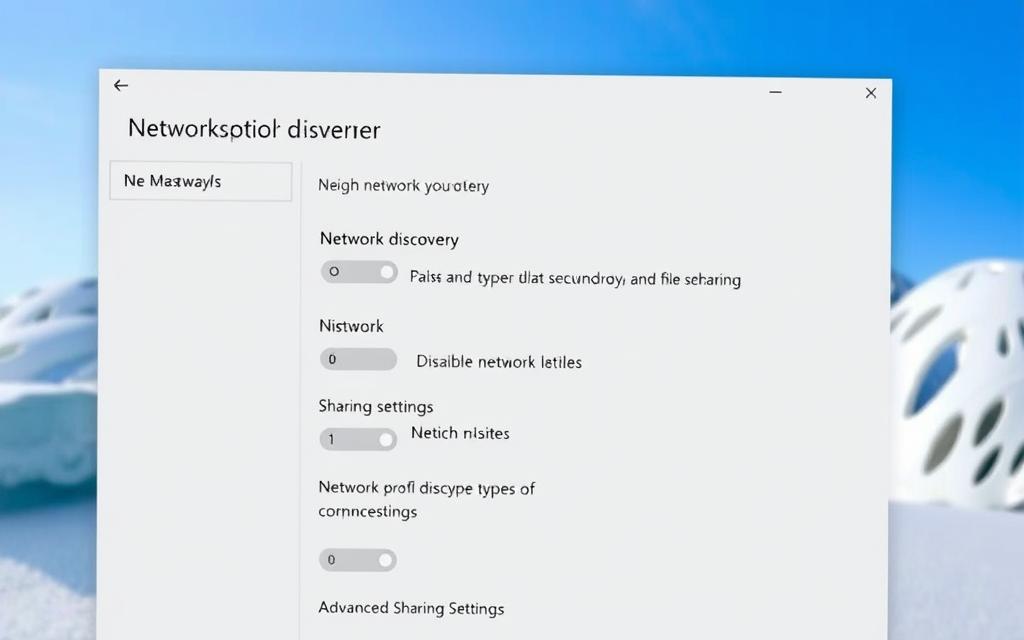
Go back to the main Network & Internet page and click “Sharing options” in the right panel. This opens the advanced sharing settings window where you can set up discovery.
Under “Private network” settings, make sure these options are on:
- Turn on network discovery
- Turn on automatic setup of network-connected devices
- Turn on file and printer sharing
Saving Settings and Confirming Changes
Click “Save changes” at the bottom to apply your settings. Windows will make these changes right away.
To check if it worked, see if other devices can find your computer. Sometimes, a quick network refresh or restart helps.
Troubleshooting Common Issues
Resolving Connectivity Problems After Changes
If devices can’t find your computer, check if you did everything right. Make sure your network profile is set to Private.
Firewalls might block discovery, even with the right settings. Check Windows Defender Firewall to see if it’s blocking network discovery and file and printer sharing for private networks.
Network services might need a restart if changes don’t work. Open Command Prompt as an admin and run “net stop fdphost” then “net start fdphost” to refresh discovery services.
Configuring Network Discovery Through Control Panel
Many Windows users like the Control Panel for network settings. It gives more control than the Settings app. This is great for those who want detailed settings.
Step 1: Open Network and Sharing Centre
Start by opening the Control Panel. It’s available in Windows 10, even though Microsoft prefers the Settings app. Just type “Control Panel” in the search bar next to the Start menu.
Locating Control Panel in Windows 10
Make sure you’re in Category view in Control Panel. Go to Network and Internet and then Network and Sharing Centre. This is where all your network settings are.
Step 2: Modify Advanced Sharing Settings
The Advanced Sharing Settings menu has key options for network settings. Here, you can set up different network profiles.
Enabling Discovery for Private Networks
In the Private network profile section, choose Turn on network discovery. This lets your computer find other devices and be found by them. Also, check Turn on automatic setup of network connected devices for easy setup.
Adjusting File and Printer Sharing Options
Next, turn on Turn on file and printer sharing. This lets others see your shared files and printers. For extra security, use password-protected sharing.
“Proper network configuration balances accessibility with security, ensuring smooth operation while maintaining protection.”
Step 3: Apply and Verify Configuration
After making changes, click Save changes. The system will update your settings. Some changes might need extra steps to work fully.
Testing Network Visibility with Other Devices
Check your settings by trying to access your computer from another device. Open File Explorer and look in the Network section. Your computer should show up. If not, wait a few minutes for the network to refresh.
Restarting Services for Changes to Take Effect
Changes might not work right away because of service dependencies. If needed, restart important networking services:
- Function Discovery Provider Host
- Function Discovery Resource Publication
- SSDP Discovery
- UPnP Device Host
These services handle network discovery. Restarting them can fix many visibility problems without a full reboot.
| Common Issue | Possible Cause | Recommended Action |
|---|---|---|
| Computer not visible | Network discovery disabled | Verify Private profile settings |
| Can see others but not be seen | Firewall blocking | Check Windows Firewall exceptions |
| Intermittent visibility | Service issues | Restart discovery services |
| Access denied errors | Sharing permissions | Review folder sharing settings |
For troubleshooting network discovery problems, this table has quick fixes for common issues. The Control Panel method is reliable for those who prefer traditional Windows management.
Advanced Configuration Using Command Line Tools
IT pros and advanced users can fine-tune network settings with command-line tools. These tools offer detailed control and support scripting. They’re perfect for big setups or when you need to do things over and over.
Step 1: Launch Command Prompt or PowerShell as Administrator
You need admin rights to change system network settings. Without it, most commands won’t work because of access limits.
Methods for Gaining Elevated Access
There are a few ways to open command-line tools with admin rights:
- Type “cmd” or “PowerShell” in Windows search, then right-click and select “Run as administrator”
- Press Windows Key + X and choose “Windows PowerShell (Admin)” or “Command Prompt (Admin)”
- Use the Run dialog (Windows Key + R) with “cmd” followed by Ctrl+Shift+Enter
Make sure you’re an admin by checking the window title bar for “Administrator”.
Step 2: Execute Commands to Enable Discovery
Command-line tools let you access network settings that graphical tools hide.
Using netsh Commands for Network Settings
The netsh utility is great for network settings. To turn on network discovery, use this command:
netsh advfirewall firewall set rule group=”Network Discovery” new enable=Yes
This command changes Windows Firewall to allow discovery traffic. Add “profile=private” or “profile=domain” to target specific network types.
PowerShell Cmdlets for Automation and Control
PowerShell is more flexible and scriptable for network settings. Use the Set-NetFirewallRule cmdlet for detailed control:
Set-NetFirewallRule -DisplayGroup “Network Discovery” -Enabled True -Profile Private
For scripts or big changes, get current settings with Get-NetFirewallRule. This way, you only change what you mean to.
Step 3: Validate and Troubleshoot Settings
It’s important to check your work when using command-line tools. They don’t give feedback like graphical tools do.
Checking Network Status with Command Line Utilities
Use ipconfig and ping to check network basics. The netsh command shows current firewall settings:
netsh advfirewall firewall show rule name=all | find “Network Discovery”
This shows only discovery-related rules, helping find problems.
Addressing Permission and Firewall Issues
Even with the right commands, permission issues can happen. The network computers not showing in Windows often means firewall blocks or service issues.
Check important services with these commands:
- sc query fdphost (Function Discovery Provider Host)
- sc query fdrespub (Function Discovery Resource Publication)
- sc query ssdpsrv (SSDP Discovery)
Make sure these services are “RUNNING”. If not, start them with “sc start [service name]” commands.
Remember, command-line changes might need a computer or network service restart. Always test your network after making changes.
Conclusion
This guide has looked at different ways to make your Windows 10 system discoverable on a network. Each method has its own benefits, depending on your level of technical skill and needs.
The Settings app is the easiest way for most people to set up their network settings. If you like older interfaces, the Control Panel gives you more control over discovery settings. For those who are very tech-savvy, using command-line tools can be the quickest way to make changes.
It’s important to remember that you need a Private network profile to be seen by others. This setting makes your network accessible but also keeps it secure. Always check your settings after making any changes to make sure everything works right.
For most home or office setups, starting with the Settings app is a good idea. It’s the simplest way to make your computer visible on the network while keeping it secure. If you’re a tech expert, using command-line tools might be better for scripting or setting up many computers at once.
With these methods, you can make your computer easy to find on your network. This makes sharing files, using printers, and talking to devices much easier in your connected space.


 By
By