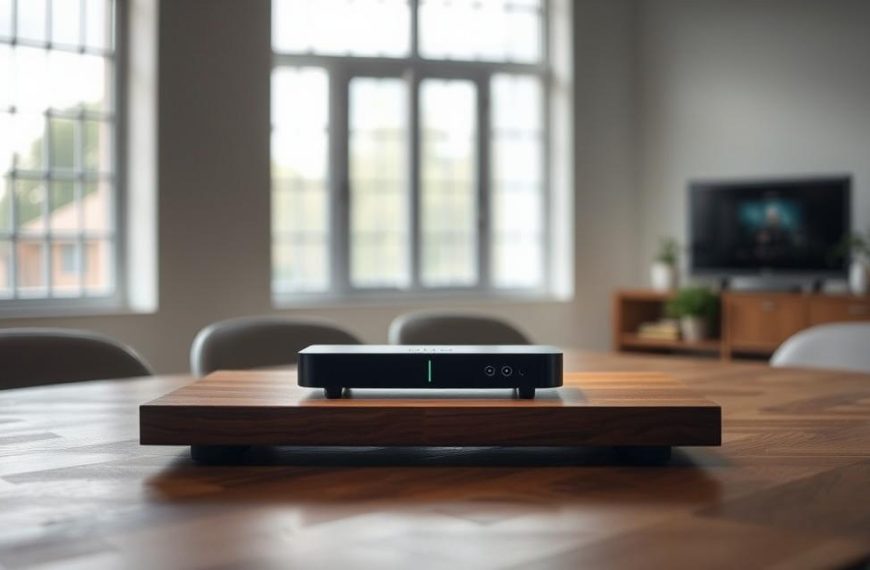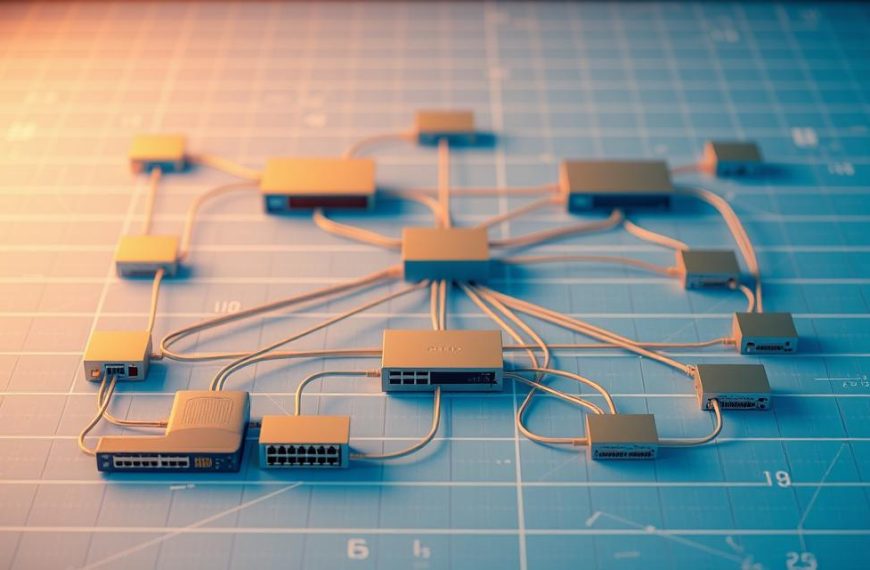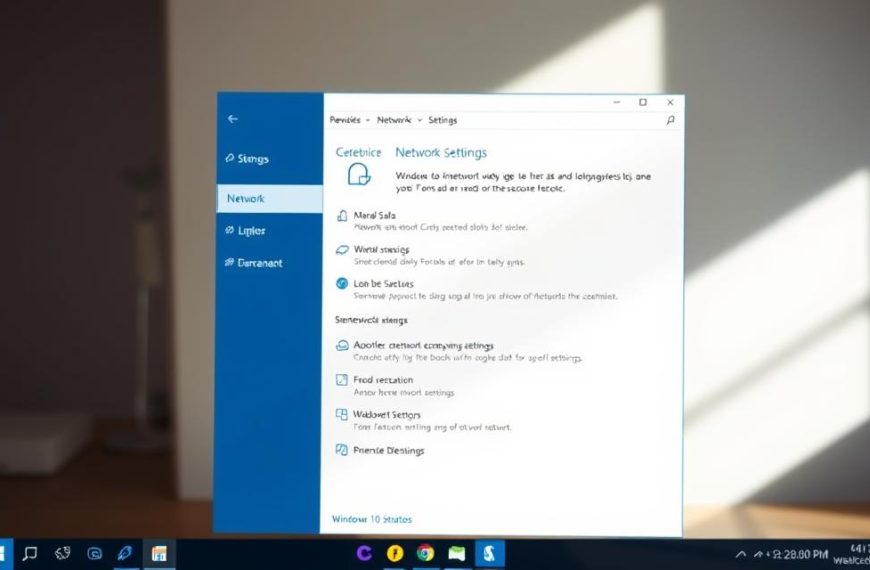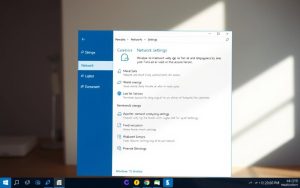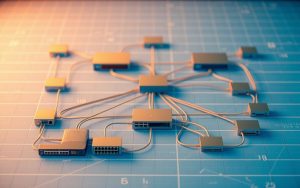

A home network definition is about linking many devices in your home. It lets computers, printers, and smart devices talk to each other easily. This setup is known as a Local Area Network.
Knowing the LAN meaning shows how devices share things locally. They can share files, printers, and internet access. You don’t need the internet to use it.
Today’s residential networking basics often include the internet. Most homes link their LAN to broadband for online access. This makes a strong digital space for families.
The main goal is to share resources and communicate well. It’s great for moving files or watching videos. It’s the heart of today’s connected homes.
Defining the Home Computer Network Concept
A home computer network is a personal digital space that links devices in your home. It lets gadgets talk to each other easily. It also shares resources and internet access across your home.
Essential Characteristics of Home Networks
Home networks are different from big business networks. They cover just one house or property, making them easy to manage.
Local control is key. Homeowners can handle their network without needing outside help for most things. This lets families tailor their digital space to their needs.
The main job of home networks is to share data and resources well. These home network features let many devices use shared things like printers and storage at the same time. The network is like the brain of your digital home life.
Common Devices in Residential Networking
Today’s home networks use many devices to create a full digital space. These parts work together to offer connectivity, storage, and access solutions.
Devices you see every day are part of any home network. This includes computers, laptops, phones, and tablets. They connect to the network to share resources and get online.
Shared resources are also important. Network-attached storage (NAS) drives offer a central spot for data. Network printers let many people print without needing to connect to each computer.
At the heart of home networks are infrastructure parts. Routers manage data flow and connect to the internet. Modems turn internet signals into data your network can use.
Wireless access points spread Wi-Fi around your home. Network switches help devices with wired connections for fast data transfer. Together, they make strong home networks.
| Device Category | Primary Function | Typical Examples |
|---|---|---|
| End-user Devices | Personal computing and communication | Laptops, smartphones, tablets |
| Shared Resources | Centralised access to peripherals | Network printers, NAS drives |
| Infrastructure Components | Network management and connectivity | Routers, modems, network switches |
This mix of residential LAN devices works together to make efficient home networks. These parts are typical home networking equipment in most homes. Knowing about them helps homeowners improve their digital setup for better performance and reliability.
A Home Computer Network Is Sometimes Also Called A LAN
When we talk about home networks, you’ll often hear the term LAN. It’s used to describe home computer networks. Knowing this helps us understand what our home networks can do and their limits.
Understanding the Local Area Network Definition
A Local Area Network connects devices in a small area. This area is usually one building or a few nearby ones. LANs are known for being small and easy to manage.
Home networks are a great example of LANs. They link computers, printers, and phones in your home. You can control them easily, without needing outside help.
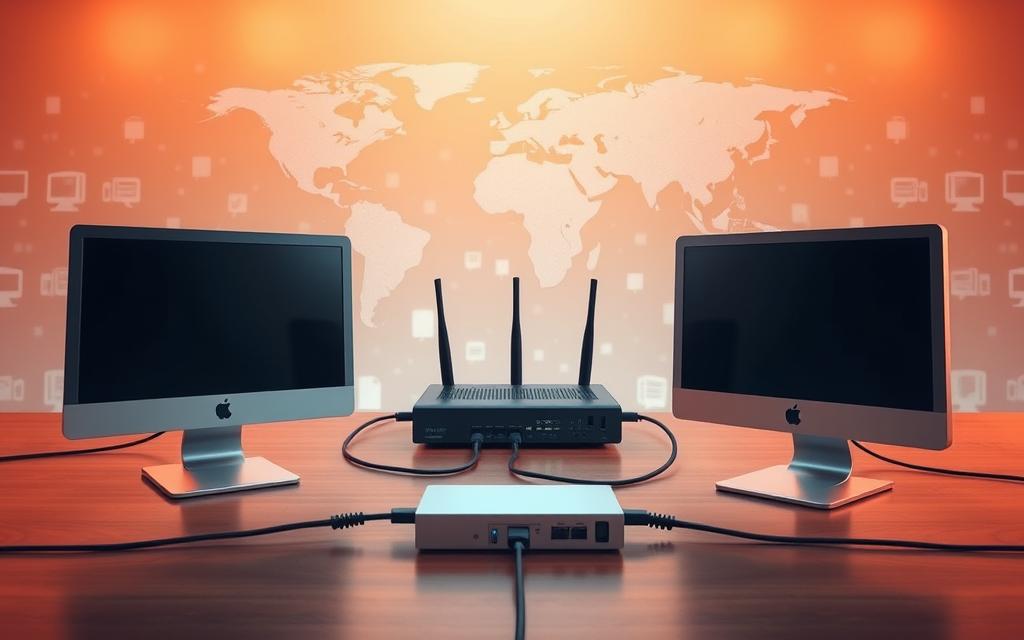
LANs use wired or wireless connections to let devices talk to each other. This makes sharing files and using the internet on multiple devices possible. Your home network works just like this.
Distinguishing LANs from Other Network Types
There are many types of computer networks, not just LANs. Knowing the differences helps us see where our home networks fit in. The main difference is how big they are and who controls them.
Wide Area Networks (WANs) are much bigger than LANs. They cover huge areas, like cities or countries. The internet is the biggest WAN of all.
Personal Area Networks (PANs) are the smallest. They connect devices right next to you. Bluetooth links between your phone and headphones are a good example.
| Network Type | Geographic Scope | Typical Use | Ownership/Control | Connection Speed |
|---|---|---|---|---|
| PAN | Personal space (10m) | Device pairing | Individual user | 2-3 Mbps |
| LAN | Building/campus | Home/office networks | Single organisation | 100-1000 Mbps |
| WAN | Cities/countries | Internet infrastructure | Multiple providers | 1-100 Mbps |
The table shows how different networks serve different needs. LANs are perfect for homes because they offer good connectivity without being too complicated.
Remember, your home network is just one type among many. Each type has its own role based on size and technical needs. LANs vs WANs show how size affects network design.
This explanation should help you understand why LANs and home networks are often talked about together. Your home network fits the LAN definition well. Knowing this helps you make better choices when setting up or fixing your network.
Core Components of a Residential LAN Setup
To set up a home network, you need key hardware pieces. Knowing about these home LAN components helps build a reliable network. It meets your family’s internet needs.
Router: The Central Hub of Your Network
The router is the brain of your local area network. It directs data flow and offers security with its firewall.
Today’s routers have Ethernet ports for wired connections and wireless features. They also do Network Address Translation (NAT). This lets many devices use one public IP address from your internet provider.
Modem: Your Gateway to Internet Access
The modem is key for outside communication. It changes signals from your internet provider into digital data for your devices.
Modems connect your network to wider areas. Many homes use combo modem-router units. But separate devices can offer better performance and flexibility.
Additional Networking Equipment
There are more pieces to improve your network. Network switches add more Ethernet ports for fast, stable connections.
Access points spread Wi-Fi across your home. Many routers have built-in access points. But standalone units can cover larger areas.
Other useful items include:
- Ethernet cables for stable wired links
- Powerline adapters for network extension through electrical wiring
- Network bridges for connecting different network types
- Wireless repeaters to boost Wi-Fi signals
These pieces work together for a strong home network. Knowing their roles and router and modem functions ensures your network works well for all devices.
Different Configurations for Home Networking
Choosing the right network setup for your home means knowing the difference between cables and radio waves. Each has its own benefits for different devices and how you use them. The choice affects how well your devices work, how reliable they are, and how easy they are to use.
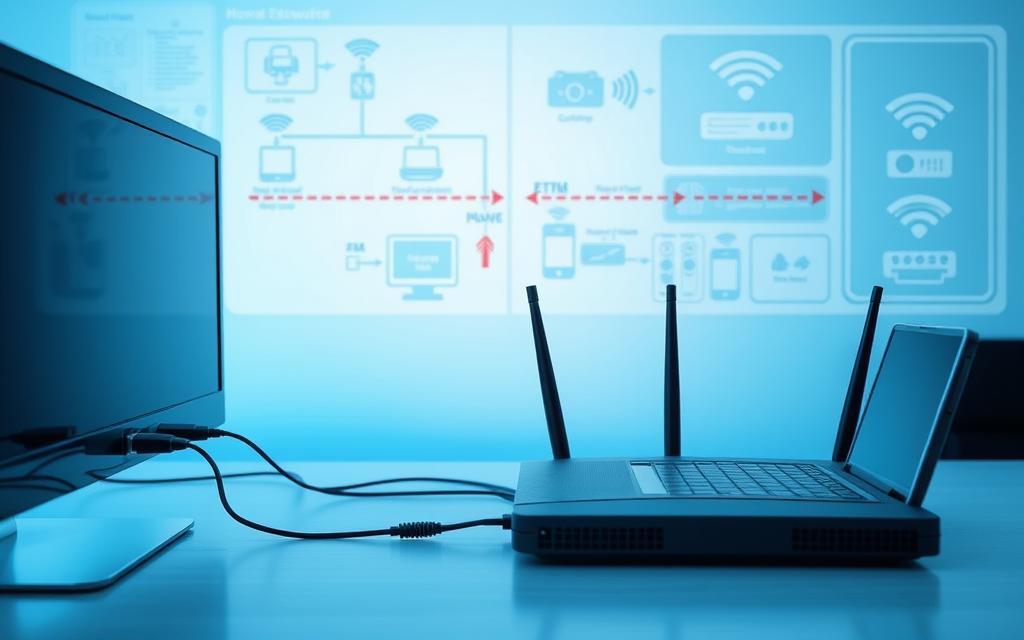
Wired Ethernet Network Setup
Ethernet uses cables to connect devices. It uses Category 5e or Category 6 cables with RJ45 connectors. This method is great for devices that need fast and reliable connections.
Wired connections have many advantages:
- They offer fast data transfer with little delay
- They are more secure because signals don’t travel far
- They work well in all environments
- They have less interference than wireless
Wired connections are perfect for devices that stay in one place. This includes desktop computers, gaming consoles, and media servers. But, you’ll need to plan how to manage cables in your home.
Wireless Wi-Fi Network Organisation
Wireless LAN has changed home networking by removing the need for cables. Wi-Fi uses radio waves to connect devices. It’s popular because it’s easy to set up and use.
Wireless networks have big benefits:
- Devices can move freely within range
- Setting up is easy without worrying about cables
- It’s great for devices like smartphones and tablets
- It’s easy to add more devices
Today’s Wi-Fi supports many devices, from laptops to smart home gadgets. But, it can be affected by physical barriers and other devices.
| Feature | Wired Ethernet | Wireless Wi-Fi |
|---|---|---|
| Maximum Speed | Up to 10 Gbps | Up to 9.6 Gbps (Wi-Fi 6) |
| Latency | Very low (1-2 ms) | Moderate (5-20 ms) |
| Reliability | Exceptional | Subject to interference |
| Mobility | Limited by cable length | Complete within range |
| Installation Complexity | Requires cabling | Plug-and-play setup |
Many homes use a mix of wired and wireless networks. This way, devices that don’t move use cables, and mobile devices use Wi-Fi. This mix makes the most of both worlds.
Knowing the difference between wired and wireless networks helps homeowners make better choices. The best option depends on your needs, the devices you have, and how you want them to work.
Practical Benefits of Home LAN Implementation
Setting up a home LAN brings many practical benefits. It makes our daily digital lives easier. These networks improve how we use technology at home.
Resource and Peripheral Sharing
A home network turns separate devices into team players. Everyone can use shared resources at the same time. This means no need for duplicate items.
Sharing files is easy on a home network. No more using USB drives to move documents. Media libraries can be streamed to TVs, tablets, or phones everywhere in the house.
Sharing peripherals is another big plus. One printer can be used by everyone, saving money and effort. This is better than having a printer for each device.
| Resource Type | Without LAN | With LAN Implementation | Key Benefit |
|---|---|---|---|
| Document Files | Email transfers or USB drives | Instant network folder access | Time efficiency |
| Media Libraries | Device-specific storage | Whole-home streaming capability | Centralised access |
| Printers | Dedicated per computer | Network-wide sharing | Cost reduction |
| Internet Connection | Individual device plans | Single subscription sharing | Monthly savings |
Centralised Internet Access Management
Home networks offer control over the internet from one place. The router is the hub for managing connections.
Parents can set up filters and time limits for all devices at once. They can also make sure important tasks like video calls work well. This is thanks to Quality of Service (QoS) settings.
Network security keeps all devices safe with one set of firewall rules. Automatic updates and patches make the network stronger. This keeps everyone’s devices protected.
With these tools, the internet becomes a well-organised resource. Homes see better performance, more security, and rules that fit their needs.
Establishing Your Home LAN: A Practical Guide
Setting up a reliable home network needs careful planning. This guide will help you set up your Local Area Network. We’ll cover everything from planning to testing.
Planning Your Network Infrastructure
Start by looking at your home’s layout and where devices will go. Think about your current needs and future plans. Measure the distances between rooms and floors to figure out cable needs.
Decide how many wired and wireless connections you need. Gaming consoles and desktops often need Ethernet. Mobile devices need wireless.
Make a simple floor plan to mark router and device spots. Also, note any obstacles that might affect the signal. This plan will help a lot during setup.
Equipment Selection and Acquisition
Choose networking gear that’s compatible and performs well. Make sure your modem fits your Internet Service Provider’s needs. Look for routers that offer both wired and wireless options.
Choose routers that support Wi-Fi 6 for better performance. Dual or tri-band routers are good for separating traffic types.
You might also need network switches, range extenders, and quality Ethernet cables. These help expand your network.
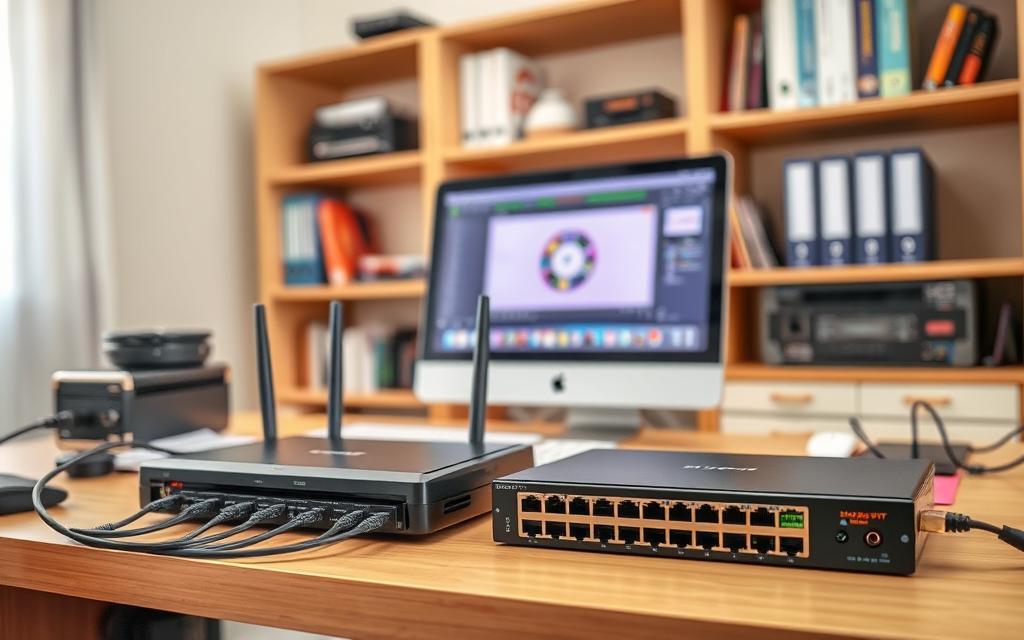
After setting up your router, log into its admin panel through your browser. Change the default admin password to something strong and unique.
Set up your wireless settings with these security tips:
- Use a unique SSID (network name) that doesn’t reveal your household
- Enable WPA3 encryption for top security
- Make a strong Wi-Fi password with letters, numbers, and symbols
- Turn off WPS if you don’t need it
The router’s DHCP server gives IP addresses to devices. For most homes, the default settings are fine. Keep your router’s firmware updated for security and performance.
Testing and Troubleshooting Your Setup
Test your network on all devices. Check both wired and wireless connections.
Run internet speed tests on different devices. Compare speeds to what your ISP promises at different times.
Common troubleshooting steps include:
- Restarting routers and modems to fix temporary issues
- Checking cable connections for damage or looseness
- Verifying device network settings and passwords
- Testing different wireless channels for interference
If you have connection drops or slow speeds, try updating drivers or moving your router. Most routers have tools to find common problems.
Conclusion
A home computer network, or LAN, is key to modern home connectivity. It lets devices talk to each other easily and share the internet. This makes life simpler by sharing resources and managing the network better.
Home networking is more than just convenience. It also boosts security and reliability. It prepares your home for the future. You can choose between wired Ethernet for stability or wireless Wi-Fi for flexibility.
Knowing how your LAN works helps you get the most out of it. It’s great for fixing problems and growing your network. By using home networking, your home stays connected in our digital world.
FAQ
What is a home computer network commonly referred to as?
A home computer network is called a Local Area Network (LAN). It connects devices in a small area, like a house. This lets computers, printers, and other devices share resources and communicate, even without the internet.
What are the essential characteristics of a home network?
A home network is small, covering just one house. It’s managed locally. It helps devices share data and communicate with each other, like computers, smartphones, and printers.
How does a LAN differ from other types of networks?
A LAN is small, like a home or office. It’s private. A Wide Area Network (WAN), like the internet, is big and public. A Personal Area Network (PAN) is tiny, connecting devices around one person, like Bluetooth headphones and a phone.
What hardware is essential for setting up a home LAN?
Key items include a router and a modem. The router manages the network. You might also need network switches, wireless access points, Ethernet cables, and powerline adapters for more connections.
What are the advantages of a wired Ethernet setup versus wireless Wi-Fi?
Wired Ethernet is fast, stable, and secure. It’s best for devices that don’t move, like desktop PCs. Wi-Fi is convenient and mobile, great for laptops and phones. But, it can face interference.
What are the practical benefits of implementing a home LAN?
Benefits include sharing resources like a printer. You can also manage the internet for all devices. This lets you set up parental controls or adjust quality of service (QoS) settings.
How do I set up a home LAN?
First, plan your network based on your home’s layout. Choose the right router and modem. Set up your router with a strong password and secure Wi-Fi. Enable DHCP and test all devices. Troubleshoot any issues that come up.
Can a home network function without an internet connection?
Yes, a home LAN can work without the internet. Devices can share resources like files or a printer. But, most networks today include internet access for more features.
What security measures should I implement for my home LAN?
Key steps include a strong router password and WPA3 encryption for Wi-Fi. Update your devices’ firmware regularly. Also, use a firewall and MAC address filtering for extra security.
What is Network Address Translation (NAT) and why is it important?
NAT is a router feature that lets many devices use one public IP address online. It boosts security by hiding internal IP addresses. It also helps with limited IPv4 addresses.


 By
By